
Toshiba BV410T: a guide to food date labels in the kitchen
Which kitchens the Toshiba BV410T suits, which version to buy, which label to use, how to encode UHF RFID and how to connect it to EtiquetaChef.
Published on November 02, 2026 · by EtiquetaChef team
Toshiba BV410T: a guide to food date labels in the kitchen
The Toshiba BV410T is a 4” thermal printer, certified by EtiquetaChef. Day to day it prints direct thermal, with no ribbon; when the label has to last longer, it prints thermal transfer with a ribbon. And, with the UHF RFID kit, it encodes the RFID tag while it prints. This guide shows who it is for, which version to buy, which label to use and how to get it printing in the app.
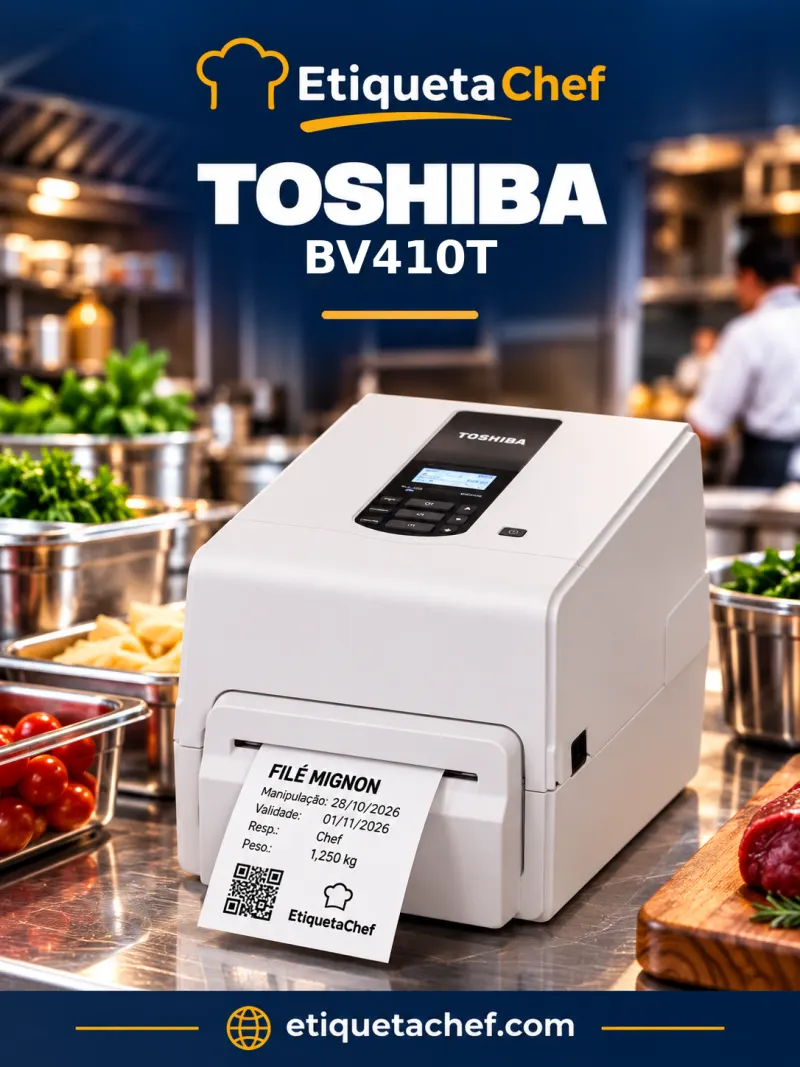
Which kitchens it suits
The BV410T is the choice for kitchens that want to go beyond a paper date label:
- Tougher labels. With a ribbon, in thermal transfer, the label stands up better to heat, moisture and rubbing.
- RFID traceability. With the UHF RFID kit, each label comes out printed and encoded in the same pass.
- 4” labels, with up to 108 mm of print width, to fit more information.
If the counter is tight and the label is small (containers, portions and vacuum bags), go for a 2” model, such as the Bixolon SLP-DX220. If in doubt, the “Which printer?” quiz recommends a model based on how you work.
The specs that matter
| Item | BV410T |
|---|---|
| Language used by the app | ZPL II (Zebra ZPL II emulation) |
| Print method | Direct thermal without ribbon, or thermal transfer with ribbon |
| Resolution | 203 or 300 dpi |
| Maximum print width | 108 mm (4” label) |
| Speed | up to 178 mm/s |
| Connection | Bluetooth (BV410T Bluetooth kit) |
| RFID | UHF RFID label encoding (BV410T UHF RFID kit, optional) |
Which version to buy
- When buying, include the BV410T Bluetooth kit: that is what lets the printer talk to your phone and tablet.
- Choose the resolution: 203 or 300 dpi. 300 dpi improves small text and fine codes.
- If you want to encode RFID, also include the BV410T UHF RFID kit. It is optional: without it, the printer prints as usual.
The Buy button on the Toshiba BV410T page opens a search for stores near you.
Which label to use
- Direct thermal labels, no ribbon, for everyday use. Ordinary laser or inkjet labels come out blank.
- Thermal transfer labels + ribbon, when the label has to stand up better to heat, moisture and rubbing.
- Up to 108 mm wide. In the app you create templates from 40 to 110 mm wide and 25 to 160 mm tall; the most common sizes are 51×25 mm, 57×51 mm and 102×152 mm.
See the sizes and roll types in the label and supplies guide.
UHF RFID encoding
With the BV410T UHF RFID kit and labels with a UHF chip (inlay), the printer encodes the RFID tag while it prints. Each label comes out printed and encoded in the same pass, with no separate encoding step.
The RFID kit is optional. Without it, the BV410T prints date labels just the same, in direct thermal or with a ribbon.
How to connect it to EtiquetaChef
On Android, the app connects over Bluetooth Classic (SPP). On iPhone and iPad, over Bluetooth Classic with Apple MFi certification.
- Turn the printer on with the label roll loaded.
- Open EtiquetaChef and go to Printers (in the More menu).
- Under Available, the BV410T shows up with its photo and model name. Tap the +: it’s added without any questions — language, resolution and width come from the model’s record.
- Tap Test print. The app calibrates the sensor and prints a check label; if it comes out right, it’s ready.
The general walkthrough, including pairing on Android, is in Setting up your first Bluetooth printer in EtiquetaChef.
Most common problems
The label comes out blank. Without a ribbon, the paper must be thermal, with the thermal side facing the print head. Use direct thermal labels, or thermal transfer labels with a ribbon.
The text comes out cut off. The label template size doesn’t match the roll. Check the template’s width: on the BV410T, up to 108 mm.
The printer doesn’t show up in the list. Check that the BV410T Bluetooth kit is installed, that the printer is on and close to the device, and that the app has Bluetooth permission (on Android, Nearby devices).
Strange characters come out. The app’s language doesn’t match the printer’s. Select ZPL II in the printer’s settings.
Next steps
See the full specs, FAQs and where to buy on the Toshiba BV410T page, or compare all models in certified printers. If you get stuck on any step, get in touch and tell us your printer model.