
Brother TD-4550DNWB: a guide to food date labels in the kitchen
Which kitchen the Brother TD-4550DNWB suits, which version to buy, which labels to use and how to connect it to EtiquetaChef on a phone or tablet.
Published on November 02, 2026 · by EtiquetaChef team
Brother TD-4550DNWB: a guide to food date labels in the kitchen
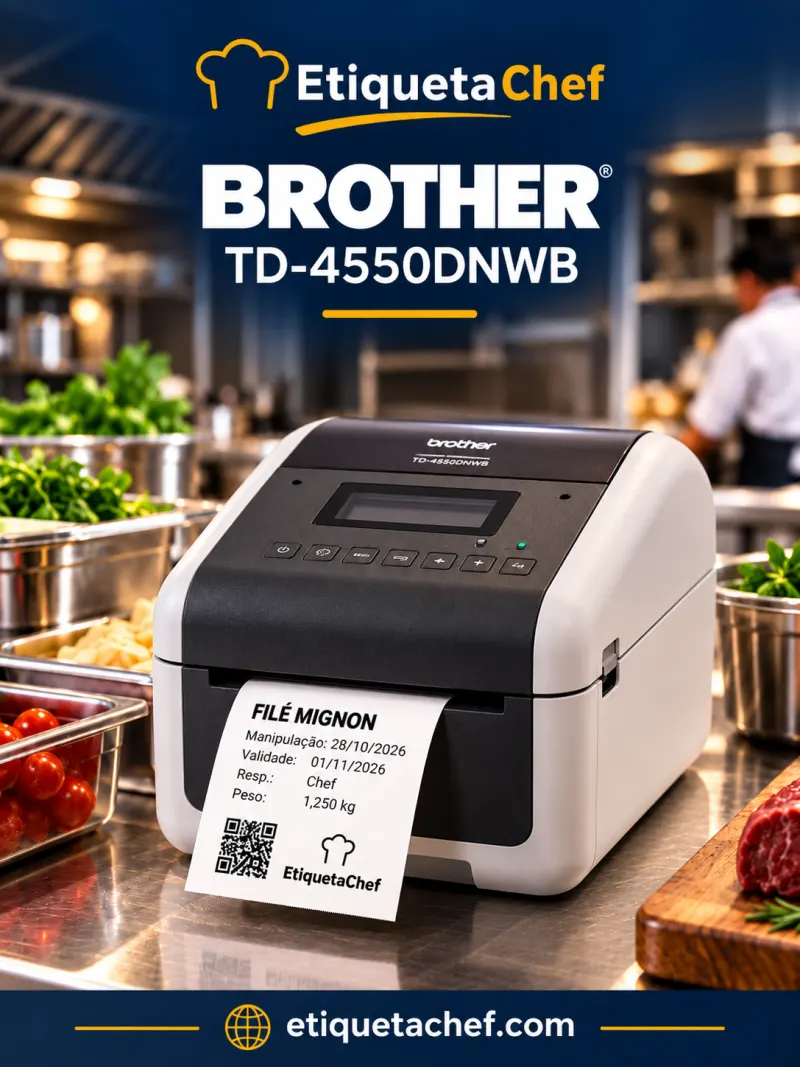
The Brother TD-4550DNWB is a 4”, 300 dpi thermal printer certified by EtiquetaChef. Small text, allergens and QR codes stay sharp even on compact labels, and Bluetooth comes built in. This guide shows who it is for, which version to buy, which labels to use and how to get it printing in the app.
Which kitchens it suits
The TD-4550DNWB is the pick when the label carries a lot of information:
- Labels with many lines, such as product, batch, expiry date and the person responsible.
- Allergens and QR codes, which need small, sharp text.
- Compact labels with plenty of text: at 300 dpi, small text stays readable.
If your bench is tight and your labels are small, go for a 2” model such as the Bixolon SLP-DX220. Not sure? The “Which printer?” quiz suggests a model based on how you work.
The specs that matter
| Item | TD-4550DNWB |
|---|---|
| Language used by the app | ZPL II |
| Print method | Direct thermal, no ribbon |
| Resolution | 300 dpi |
| Label width | up to 4” |
| Speed | up to 152 mm/s |
| Connection | Built-in Bluetooth |
Which version to buy
On the TD-4550DNWB, Bluetooth comes built in: there is no connection variant to pick and no add-on module to buy. Just make sure the model is the TD-4550DNWB.
The Buy button on the Brother TD-4550DNWB page opens a search for stores near you.
Which label to use
- Direct thermal labels. Regular laser or inkjet labels come out blank.
- Up to 4” wide. In the app, templates range from 40 to 110 mm wide and 25 to 160 mm tall. Common sizes are 51×25 mm, 57×51 mm and 102×152 mm.
- No ribbon. The TD-4550DNWB prints straight onto the thermal paper.
See the sizes and roll types in the label and supplies guide.
How to connect it to EtiquetaChef
On Android, the app connects over Bluetooth Classic (SPP). On iPhone and iPad, over Bluetooth BLE.
- Turn the printer on with the label roll loaded.
- Open EtiquetaChef and go to Printers (in the More menu).
- Under Available, the TD-4550DNWB shows up with its photo and model name. Tap the +: it’s added without any questions — language, resolution and width come from the model’s record.
- Tap Test print. The app calibrates the sensor and prints a check label; if it comes out right, it’s ready.
The general step-by-step, including pairing on Android, is in Setting up your first Bluetooth printer.
Most common problems
The label comes out blank. The paper is not thermal, or the roll is upside down. Use direct thermal labels, with the thermal side facing the print head.
The text is cut off. The label template size does not match the roll. Check the template’s width: on the TD-4550DNWB, up to 4”.
The printer does not show up in the list. Check that it is on and close to the device, and that the app has Bluetooth permission (on Android, Nearby devices).
Garbled characters come out. The app’s language does not match the printer’s. Check in the printer’s manual that it is set to ZPL II.
Next steps
See the full specs, FAQ and where to buy on the Brother TD-4550DNWB page, or compare every model in certified printers. If you get stuck on any step, get in touch and tell us the printer model.